JUST CTF Qualifications 2024 - Writeups

Fanous - 0
My friend (Fanous) is a hardcore gamer. Although I advised him not to download cracked games, he never listened to my advice, so he downloaded a cracked game, and unfortunately, he disabled his antivirus. Things have been going well for him until he complained about an annoying window that keeps popping when he presses the (SHIFT) key many times on his keyboard while he is playing the game. He met one of his online friends, who said he could help. They met, and Fanous reported that he had a magical USB flash drive that he inserted into his device, and he had done some things to his computer, and the annoying window disappered. A couple hours later, Fanous noticed his computer was acting weirdly. He suspects that his friend did something wrong to his computer.
Here is a disk image of his computer. Figure out what happened.
Fanous - 1
Welcome to the first challenge of the “Fanous” digital forensics series. Your mission is to answer the following questions:
Q1- What is the volume friendly name associated with the USB flash drive?
Q2- Determine the exact time when the USB flash drive was connected to Fanous’s computer (HH:MM:SS-DD/MM/YYYY) in UTC
Q3- What is the USB Device ID associated with the flash drive?
Assemble your findings into the flag format.
Flag Format: JUST{A1_A2_A3}
Flag Example: JUST{ExampleName_17:10:23-07/10/2023_ABCD0123456789}
Solution
Let’s start with mounting the image in Autopsy.
During the CTF I saw many people solve it using some automated tools like (USB Detective & USB Forensic Tracker), which you can feed with some artifacts (setupapi.dev.log, SOFTWARE, SYSTEM).
I prefer the manual way.
Q1: What is the volume friendly name associated with the USB flash
drive?
The volume friendly name (the device name of the connected drive) can be found in the SOFTWARE registry hive in this path: SOFTWARE\Microsoft\Windows Portable Devices\Devices
Let’s dump the SOFTWARE registry hive from the image, which is found in C:\Windows\System32\Config
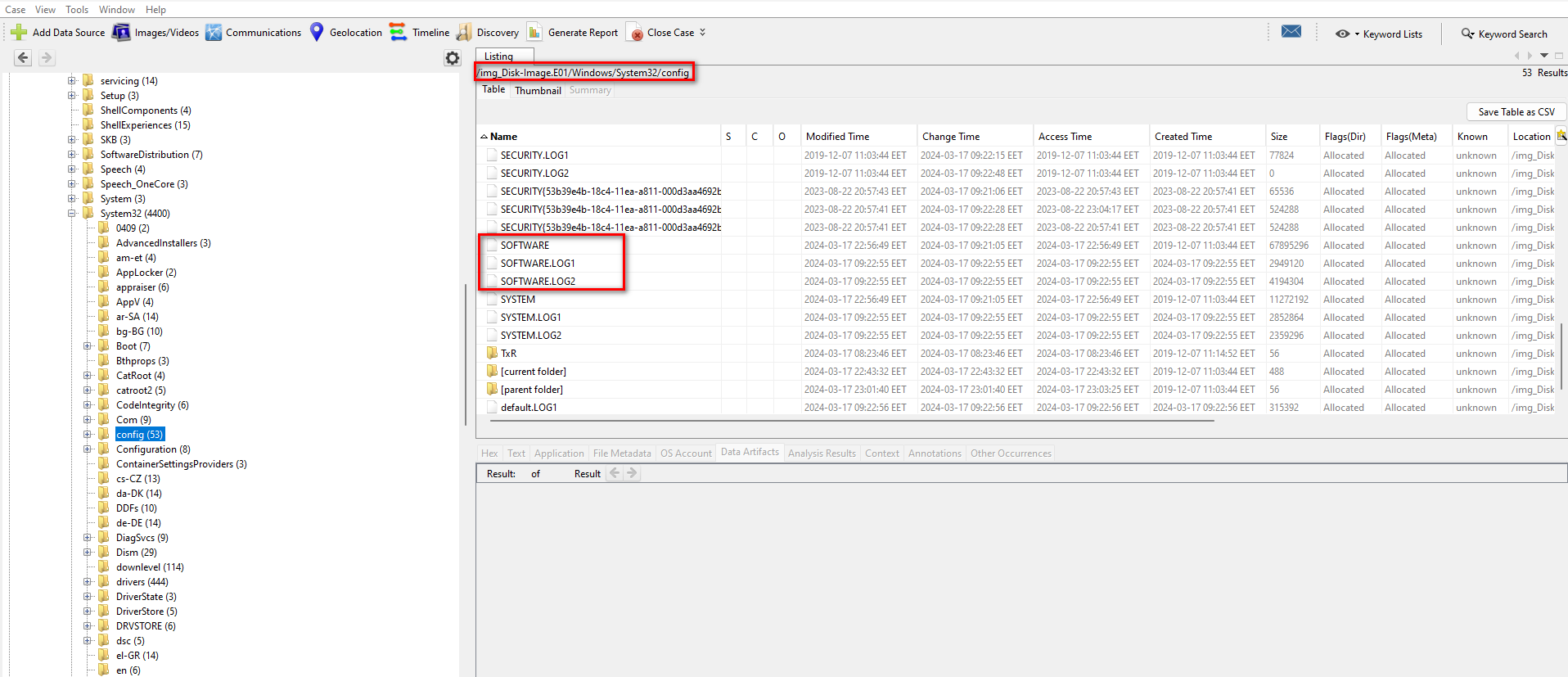
Let’s open them now in Registry Explorer
Note: The registry hive is dirty and contains some transaction logs that must be loaded with it.
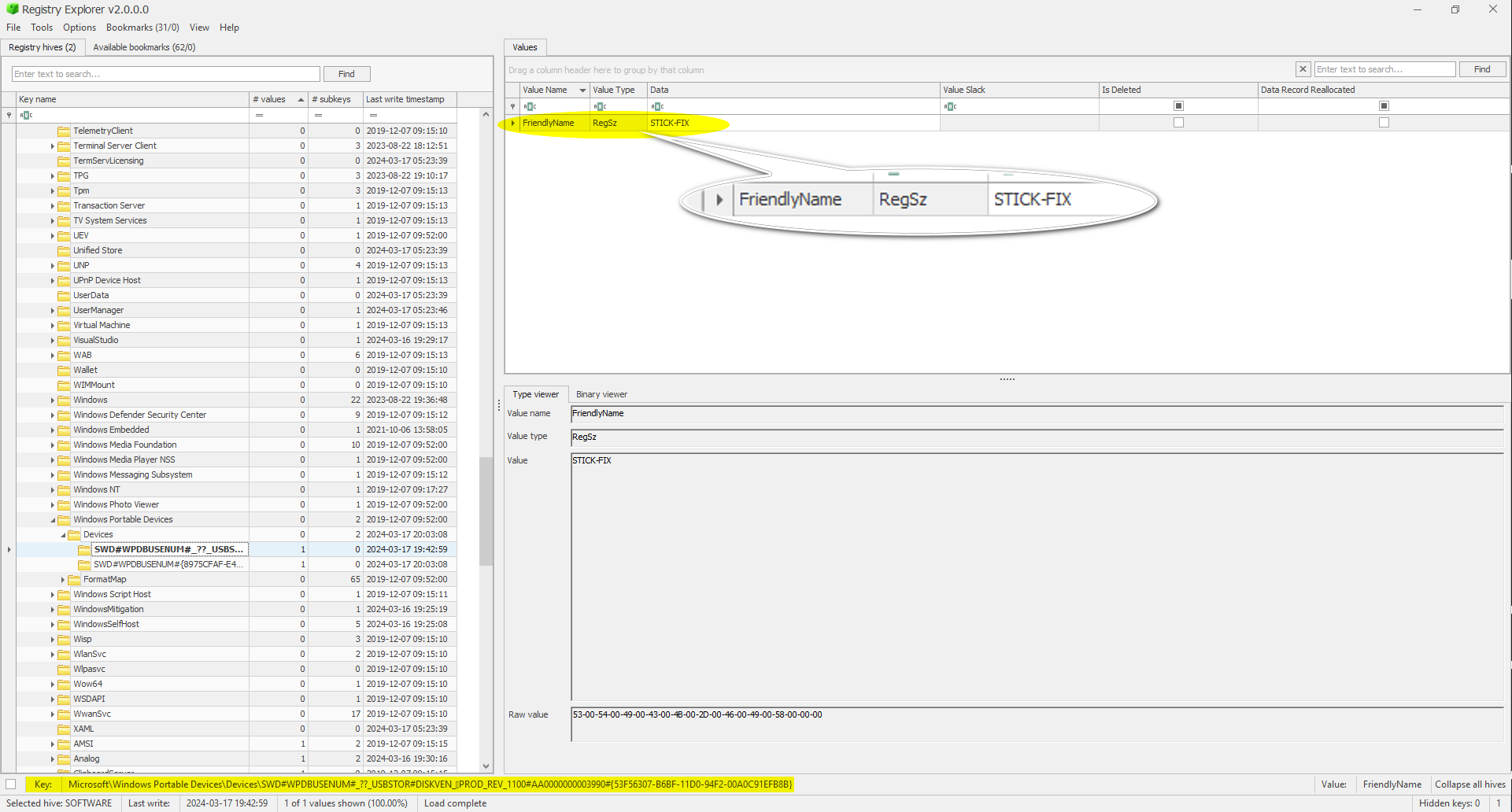
Answer: STICK-FIX
Q2- Determine the exact time when the USB flash drive was connected to
Fanous’s computer (HH:MM:SS-DD/MM/YYYY) in UTC
The following registry key tracks the first time the device was connected to the system.
SYSTEM\CurrentControlSet\Enum\USBSTOR\Ven_Prod_Version\USBSerial#\Properties\{83da6326-97a6-4088-9453-a19231573b29}\0064
Let’s dump the SYSTEM hive from the image as we did with the SOFTWARE hive:
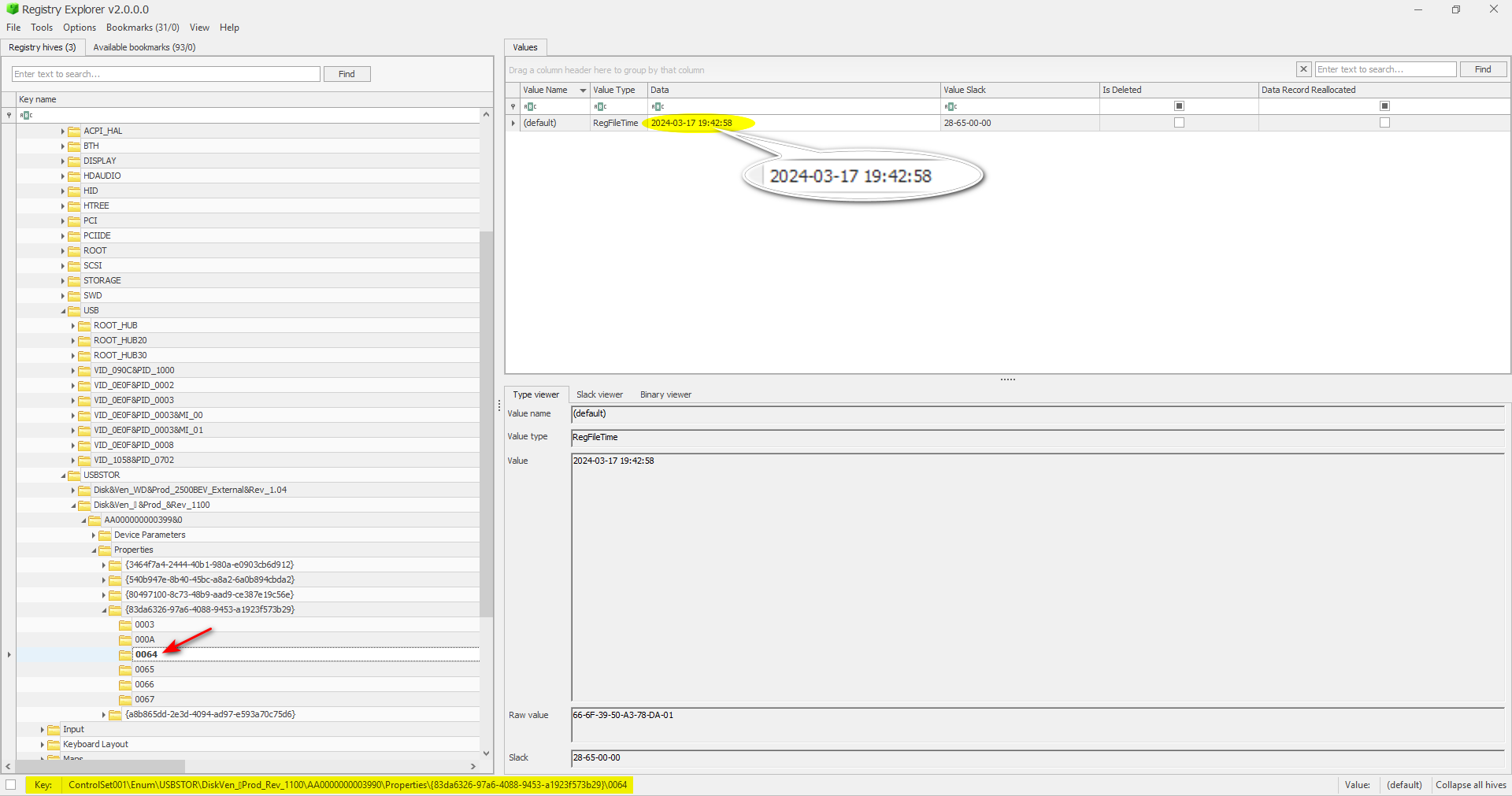
Answer: 19:42:58-17/03/2024
Q3- What is the USB Device ID associated with the flash drive?
Autopsy did the job for us
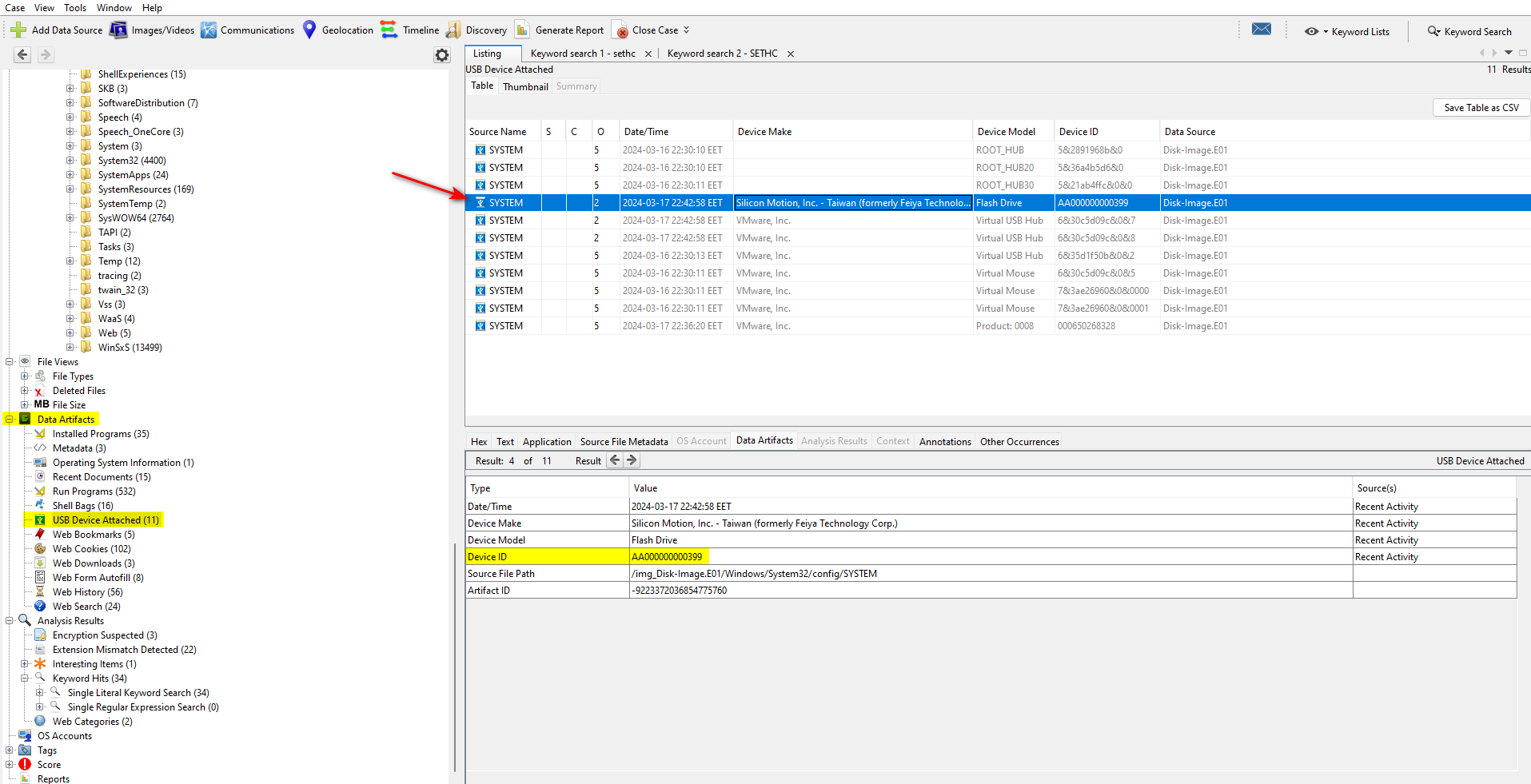
JUST{STICK-FIX_19:42:58-17/03/2024_AA000000000399}
Fanous - 2
This is the second challenge of the “Fanous” digital forensics series. Your mission is to answer the following questions:
Q1- Identify the name of the malicious executable that was executed on Fanous’s computer.
Q2- Identify the IP address and port number utilized by the attacker during the malicious activity. (IP:PORT)
Q3- Determine the MITRE ATT&CK ID corresponding to the attack observed on Fanous’s computer.
Assemble your findings into the flag format.
Flag Format: JUST{A1_A2_A3}
Flag Example: JUST{filename.ext_92.253.93.116:1234_T1110.002}
Solution
The description is crucial for this challenge.
Q1- Identify the name of the malicious executable that was executed on
Fanous’s computer.
During the CTF most people thought that it was dControl.exe that is found in \Users\Fanous\Downloads\8xyz8\8xyz8\dControl.exe but it was not, dControl.exe was downloaded and executed by Fanous himself, which is Defender Control v2.1. We can confirm that by checking the web search history.
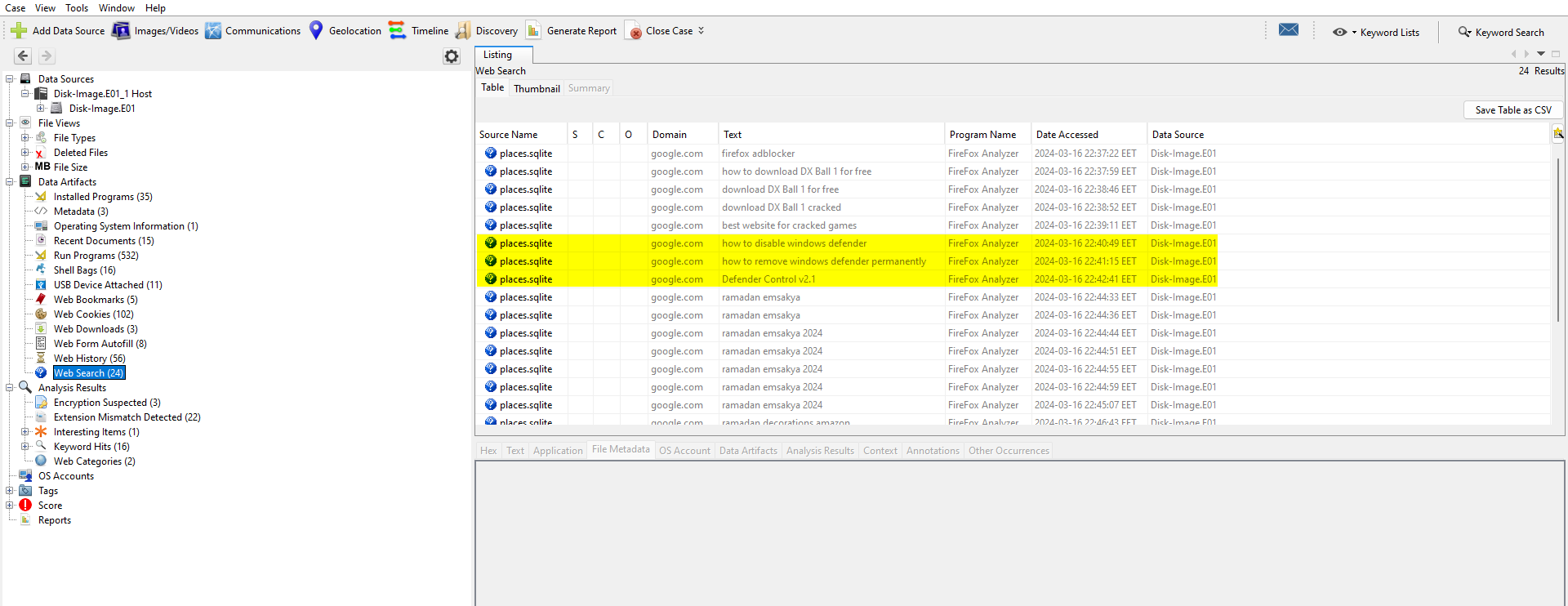
dControl.exe is the utility that Fanous used to disable windows defender so he could install the cracked game (DX Ball 1).
So how can we find the malicious executable? Let’s check the prefetch files.
Prefetch files can be found in C:\Windows\Prefetch ; they record the first and last time an executable was run on a system.
Let’s dump them and view their contents to see what was executed. I’ll use PECmd to parse them.
.\PECmd.exe -d <path to the exported prefetch files> --csv <path to csv>
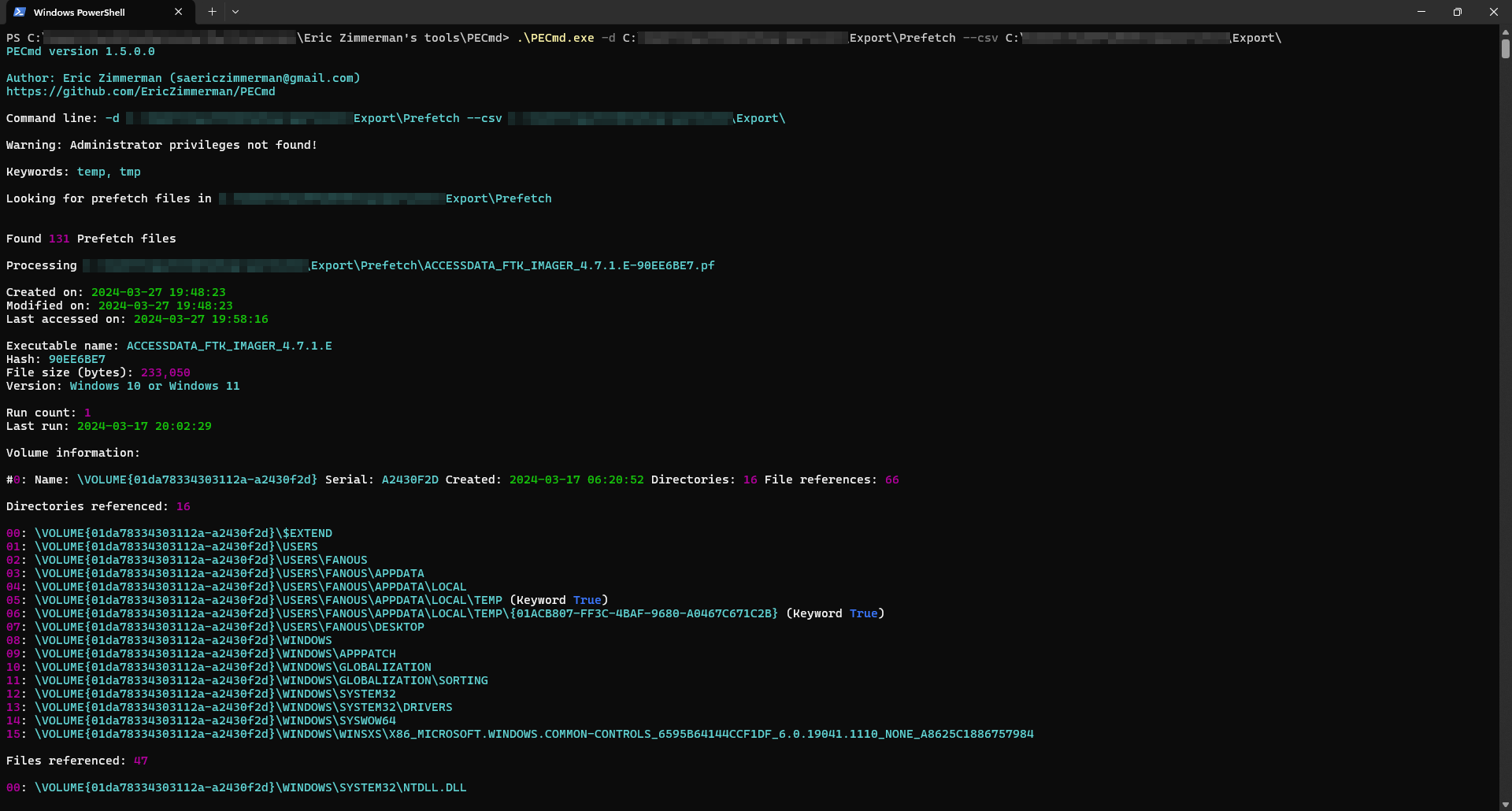
We got a bunch of entries, so of course we won’t be looking through each one of them.
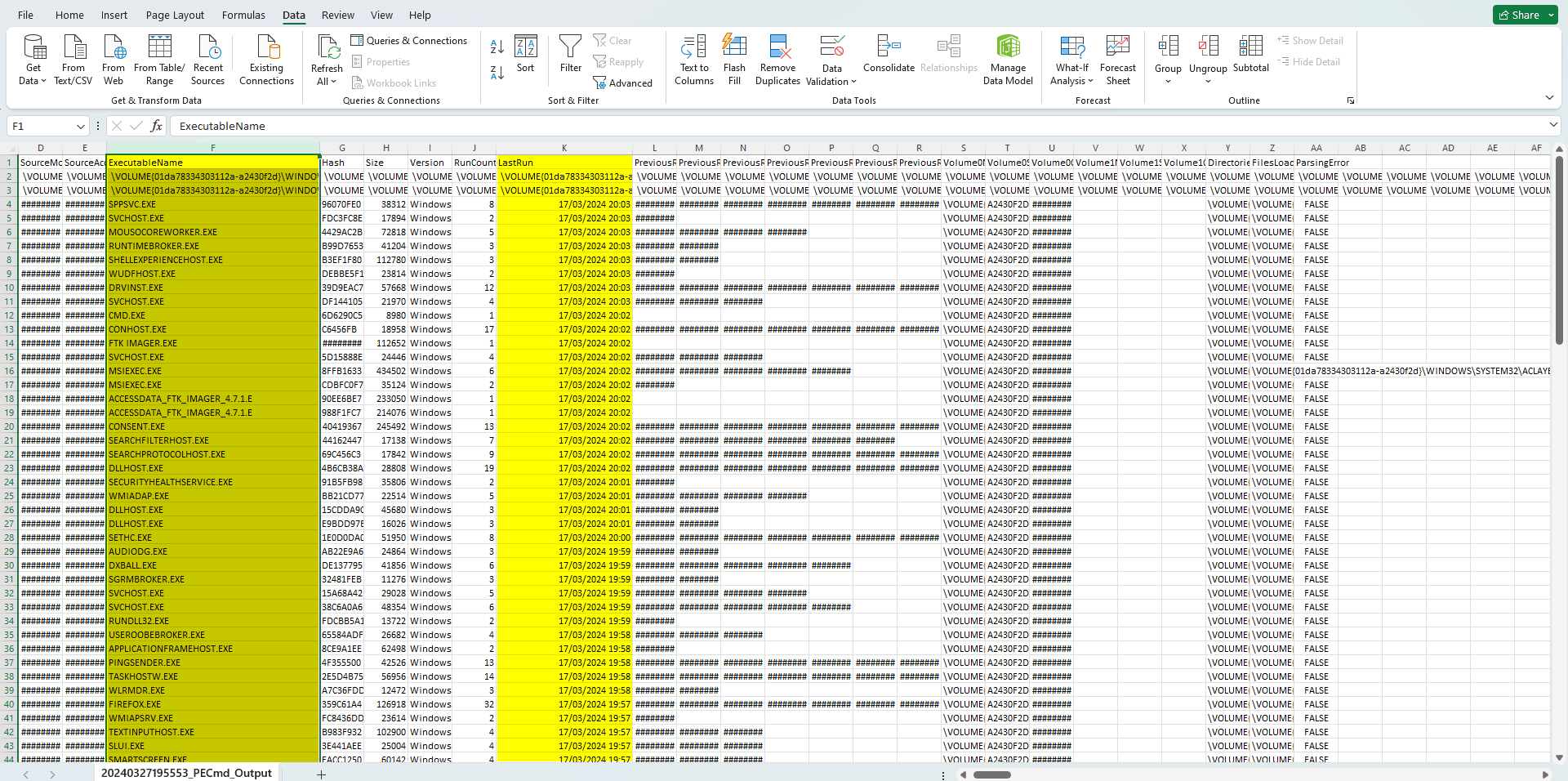
So what can we do to limit the search range? We can sort them by the “Last Run” column (Excel skills came in handy here). Let’s look through the executables that were run after the USB was inserted.

All the executables look legit, but one of them stands out, which is “SETHC.EXE”.
Let’s look it up.
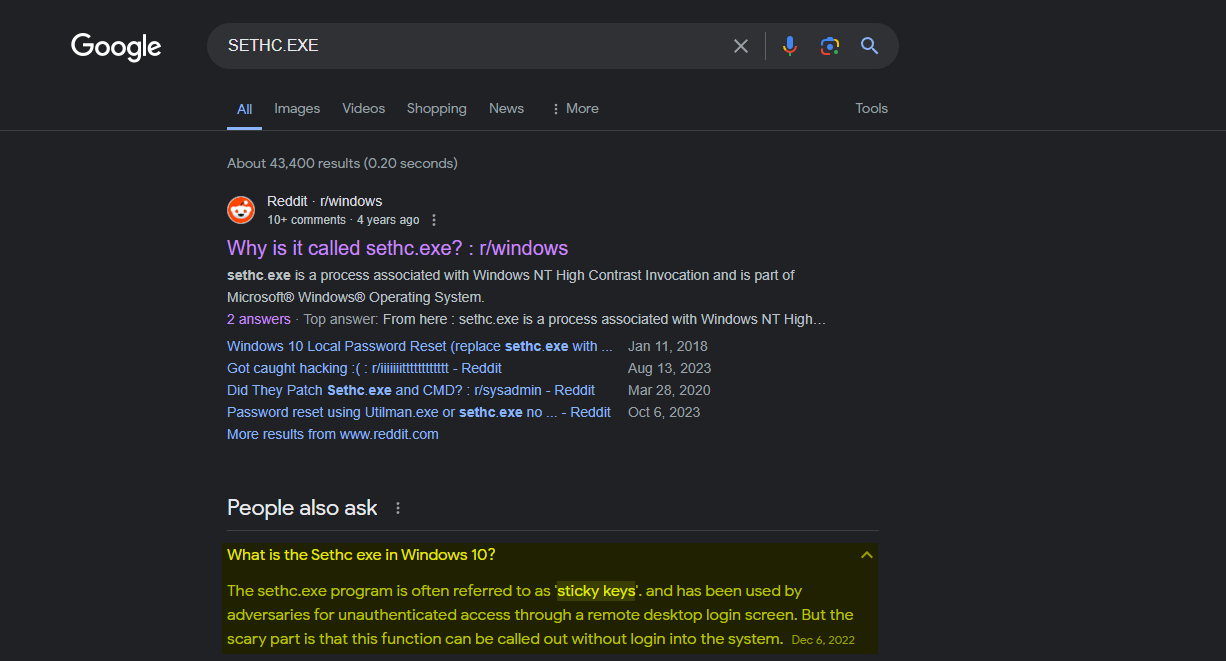
The description also mentioned something similar.
Things have been going well for him until he complained about an
annoying window that keeps popping when he presses the (SHIFT) key
many times on his keyboard while he is playing the game.
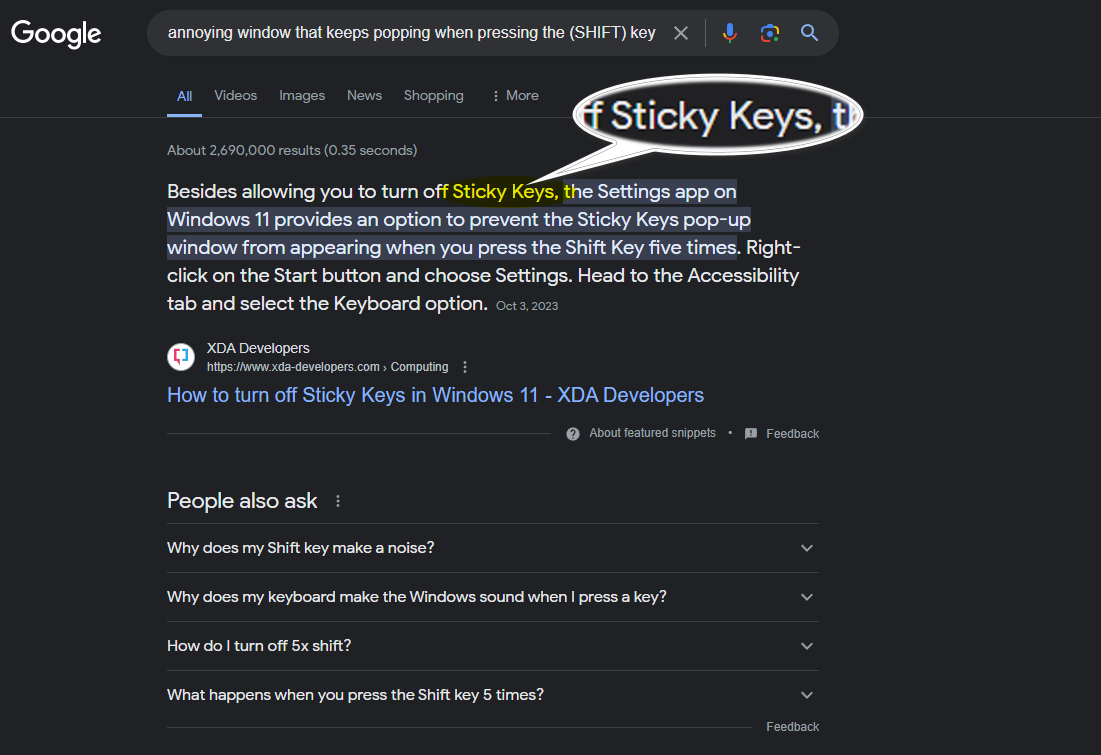
After a few searches, you should find out that the sticky keys executable (SETHC.EXE) can be abused to create a backdoor.
Let’s confirm that by extracting it from C:\Windows\system32\sethc.exe and uploading it to VirusTotal.
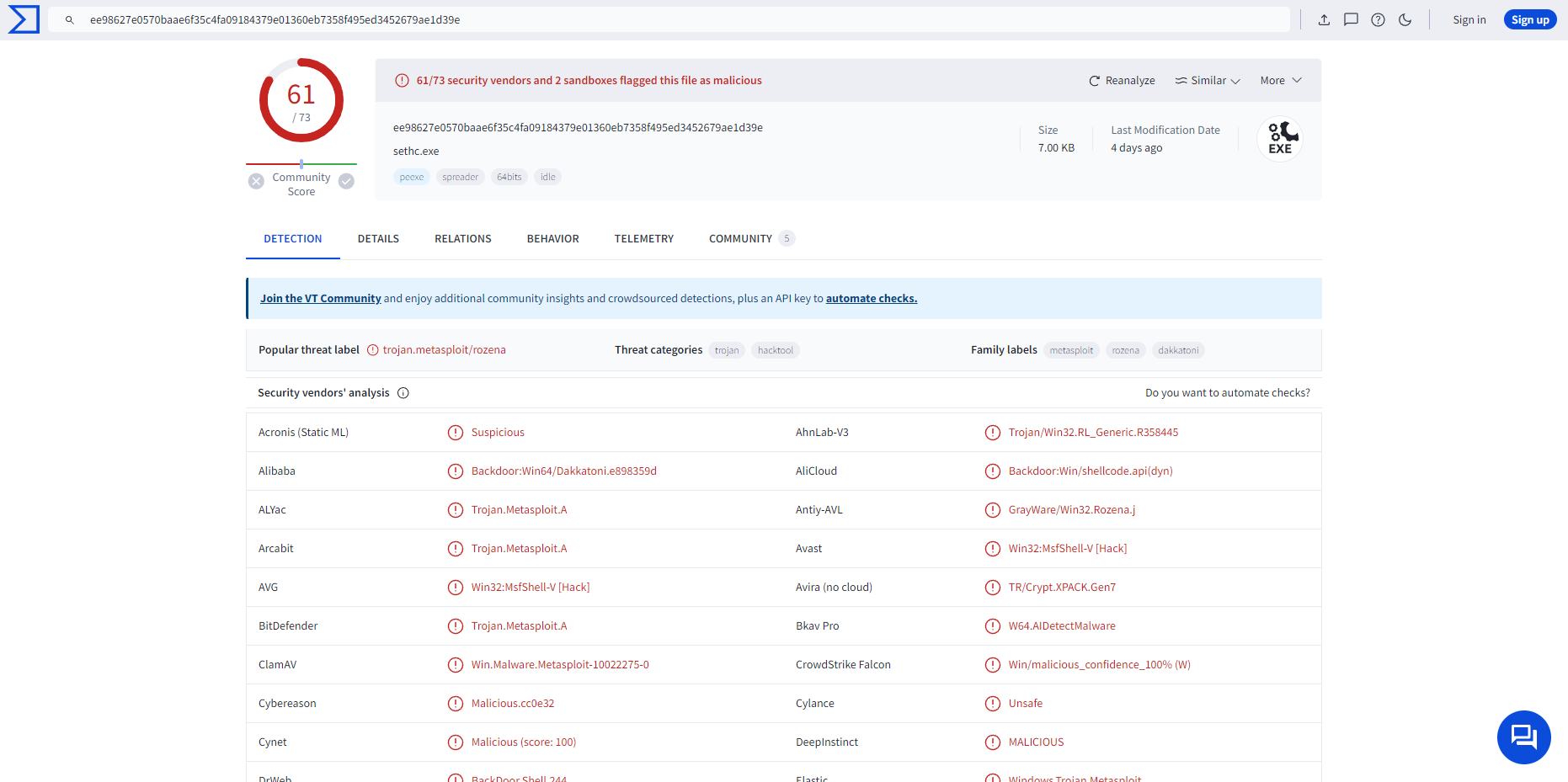
Great! We have the malicious executable.
Answer: sethc.exe
Now the rest is easy.
Q2- Identify the IP address and port number utilized by the attacker
during the malicious activity. (IP:PORT)
We can see the attacker’s IP address and port number in the Behavior section in VirusTotal.
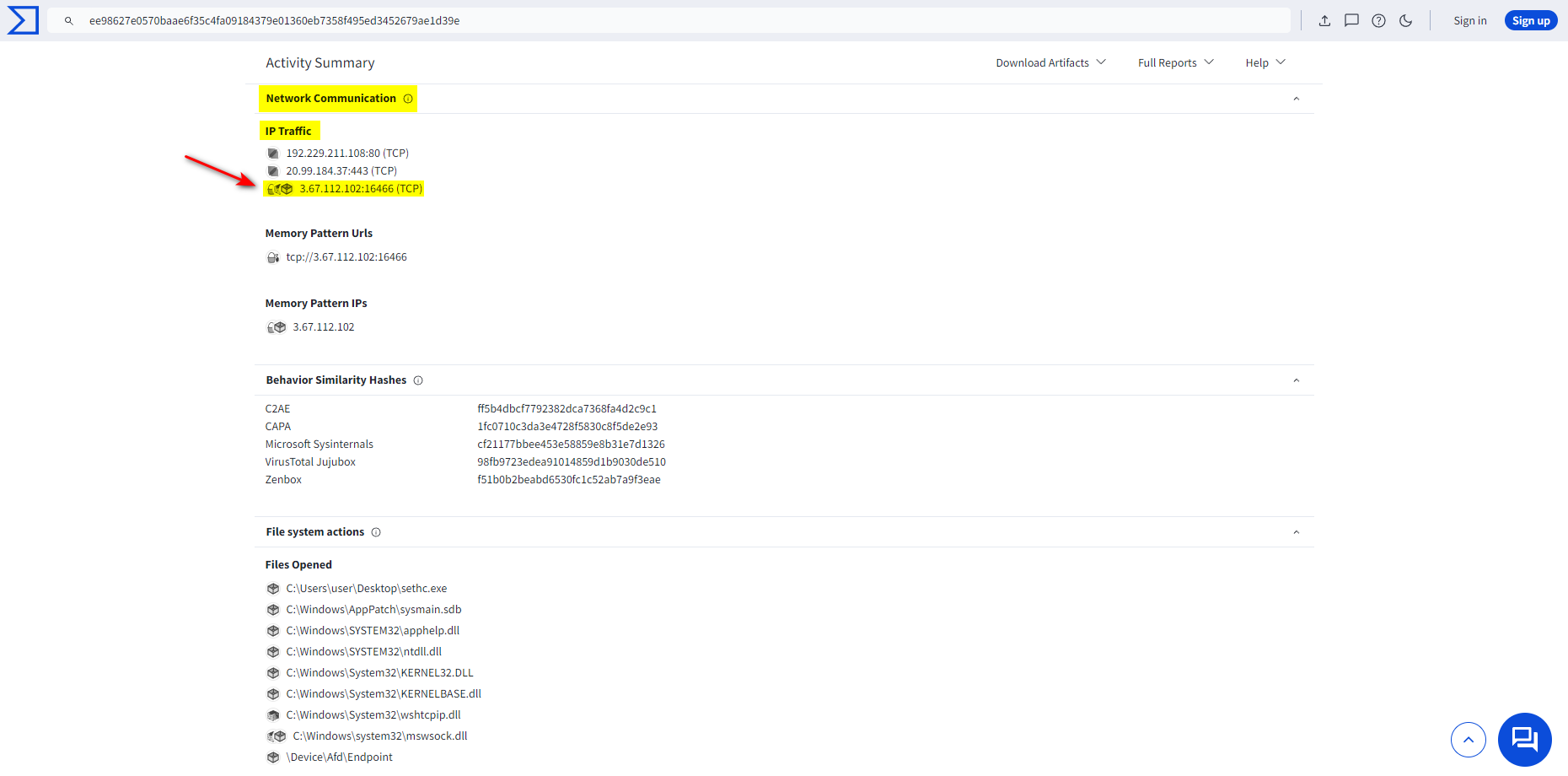
Answer: 3.67.112.102:16466
Q3- Determine the MITRE ATT&CK ID corresponding to the attack observed
on Fanous’s computer.
A simple Google search will get us the answer.
https://attack.mitre.org/techniques/T1546/008/
JUST{sethc.exe_3.67.112.102:16466_T1546.008}
References
https://www.ired.team/offensive-security/persistence/t1015-sethc